How to Choose a Hard Drive for an NVR or DVR: Capacity, Compatibility and Workload
A larger hard drive does not automatically work in an older recorder. A drive advertised for dozens of cameras also does not guarantee a month of history from your particular streams. Capacity, recorder compatibility and recording workload answer different questions, and you need all three before buying.
Start with the NVR or DVR manufacturer’s compatibility requirements, calculate the usable capacity needed for your retention target, then choose a supported drive whose workload and operating specification fit the system. Do not select by brand name, RPM or price per terabyte alone.
This is a specification-based buying guide, not a laboratory reliability ranking. Manufacturer examples illustrate how to read a datasheet; they do not establish that one drive is compatible with every recorder or that SecurityLatest has tested its failure rate.
The information to collect before shopping
Record the recorder’s full model, hardware revision and firmware. Look for the number of internal bays, supported drive interface, maximum capacity per bay and any separate maximum total capacity. A four-bay recorder rated for a certain total does not necessarily accept that entire total on one disk.
Check whether the supplier publishes an exact compatibility list or approved drive categories. The same recorder name can cover different hardware revisions. Ask support to confirm the proposed part number where the documentation is unclear.
| Requirement | What to record | Why it matters |
|---|---|---|
| Physical installation | Bay size, interface, brackets and available power connections | A connector match alone does not establish a supported installation |
| Capacity | Maximum per drive and total across the recorder | A larger unsupported disk may not initialize or be fully usable |
| Recording demand | Camera count, actual recorded streams, average bitrate and schedule | Determines daily consumption and write workload |
| Retention objective | Required days at useful quality | Turns a vague bigger-is-better purchase into a sizing decision |
| Other activity | Playback, exports, analytics and additional streams | These can add load beyond the incoming video |
| Failure plan | Health alerts, any supported redundancy and independent incident copies | A replacement disk is not a complete recovery strategy |
For a new system, use our NVR-versus-DVR guide to clarify the architecture. If an existing disk is suddenly missing, diagnose that fault before ordering a larger drive; capacity may not be the cause.
Surveillance drives versus ordinary desktop drives
Drive families are designed and rated for different intended workloads. A home computer may alternate bursts of activity with idle periods, while a surveillance recorder can receive video continuously. Manufacturers publish operating and workload specifications to help distinguish those uses.
For example, Western Digital describes WD Purple as a surveillance family for continuous DVR/NVR use, with a stated workload rate up to 180 TB per year for the mainstream product described. Read the exact capacity’s datasheet and the definition of workload rather than treating the family name as a universal performance claim.
A desktop disk might appear to function when installed, but that alone does not establish recorder support or suitability for the intended duty. Conversely, a surveillance label does not override an explicit incompatibility in the recorder documentation.
Read the exact model, not just the range name
Manufacturers change capacities, generations, cache sizes and other specifications within a family. Standard, Pro and AI-labelled products may have different targets and workload ratings. Do not combine a photograph of one generation with the specifications of another.
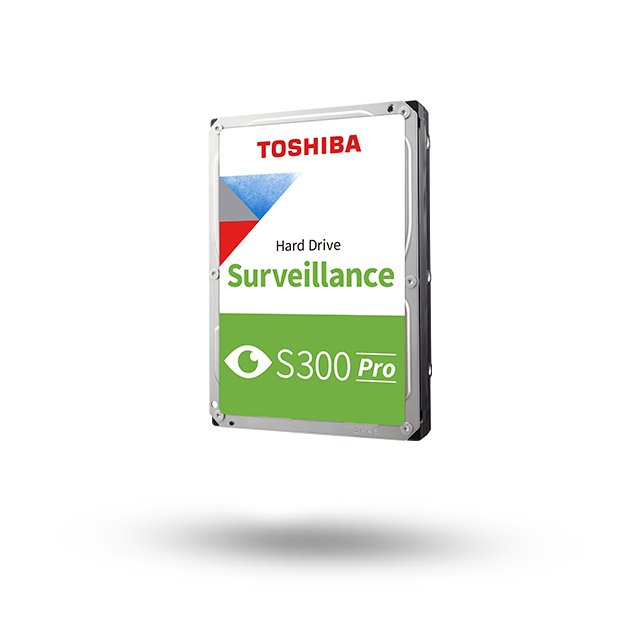
The EMEA S300 Pro page for the cited generation lists 6, 8 and 10 TB variants, a 3.5-inch SATA interface and 180 TB-per-year workload specification. Its separate part-number table is what lets a buyer identify the actual product. Those figures should not be assigned to every Toshiba surveillance drive or a later generation carrying a similar name.
Keep the supplier’s complete part number in the quotation and on your installation record. That makes future warranty or replacement work much easier than a receipt saying only 8 TB CCTV drive.
Calculate capacity from bitrate and recording hours
For continuous recording, multiply the total recorded bitrate in megabits per second by 10.8 to estimate decimal gigabytes per day. Then multiply by the desired number of days. Include every stream actually stored, not only the main streams you normally watch.
Suppose four cameras each average 4 Mbps. Their combined 16 Mbps produces approximately 172.8 GB per day, or 5,184 GB for 30 days before audio, filesystem overhead and a practical margin. A nominal 4 TB drive cannot meet that particular target just because the listing says it supports four cameras.
A supported 6 TB option may be a candidate, but confirm usable allocation, bitrate variation and the required margin. Our storage calculator lets you change the assumptions, while the retention guide explains how to verify the oldest actual recording afterward.
Event-only recording needs measured assumptions
A recorder saving two hours of events per day at the same bitrate uses much less capacity than one saving all 24 hours. But the amount of motion can change sharply with traffic, weather and detection settings. A quiet test afternoon is a poor basis for a year’s storage plan.
Measure representative recorded duration or consumption, include busy periods and allow for pre-event and post-event footage. If the required history is important, plan around a realistic upper workload rather than the most optimistic day.
Do not reduce image quality until the arithmetic fits without testing the consequence. A month of video that cannot show the intended subject is not better than a shorter but useful archive. Compare the recording-mode tradeoffs before changing them.
Capacity and annual workload are different limits
Capacity is how much data the drive can hold at one time. Workload concerns how much data is transferred over a period under the manufacturer’s definition. A loop recorder can rewrite the same space repeatedly, so annual activity can be many times the drive’s capacity.
Consider eight streams at a constant 4 Mbps each. The combined 32 Mbps produces approximately 126 TB of video writes over 365 days. Sixteen such streams produce approximately 252 TB. Both calculations exclude additional reads, audio and overhead.
That shows why an up-to-64-cameras marketing figure cannot be treated independently of bitrate and workload limits. Compare the exact product’s assumptions and transferred-data definition. A camera count is not a guarantee for any resolution, stream count or analytics workload you choose.
Planning check: continuous annual video writes in decimal TB are approximately total Mbps × 3.942. This is arithmetic for 365 days, not a benchmark or warranty interpretation; use the manufacturer’s full workload definition for the actual purchase.
RPM, cache and CMR: useful specifications, not a universal score
Rotational speed and cache size describe aspects of the drive, but they do not by themselves establish compatibility or the best choice for a recorder. Higher numbers can bring tradeoffs in power, heat or noise, and the system’s actual bottleneck may lie elsewhere.
Recording technology also matters to product selection. Seagate’s official CMR/SMR listing identifies the recording technology used by its drive families. Use exact current model information instead of assuming every disk with the same capacity behaves identically.
Ask the recorder supplier for a supported configuration if the requirement is uncertain. The practical goal is sustained operation under the documented workload, not winning a desktop transfer-speed comparison unrelated to surveillance.
SSD, NAS drive or external USB disk?
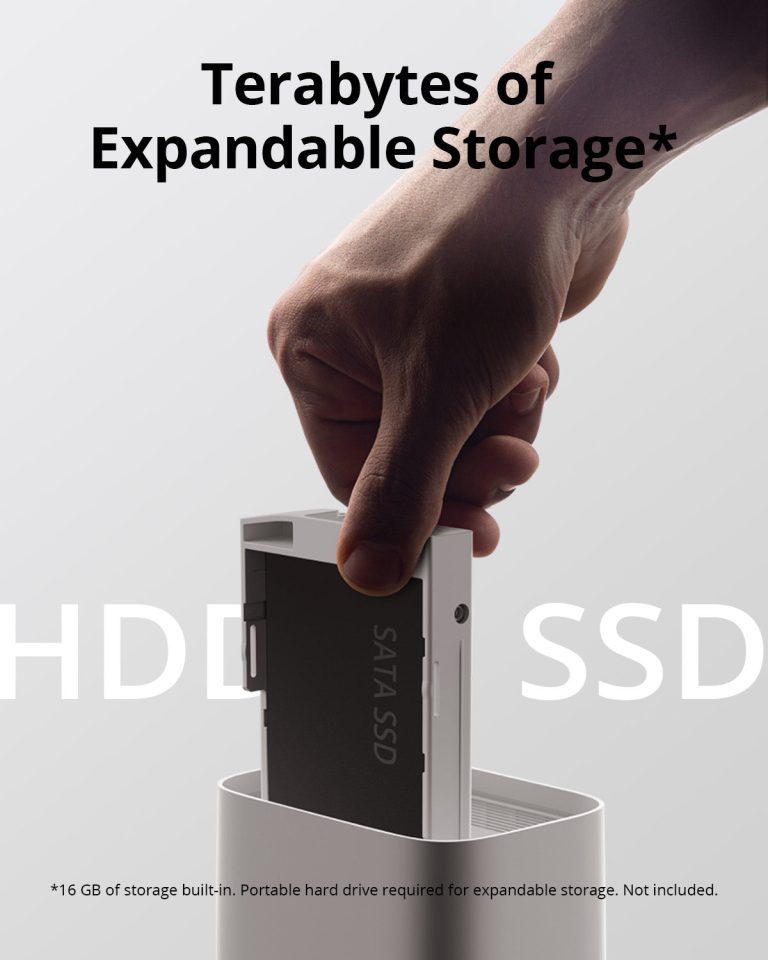
A device using a SATA connector is not automatically supported merely because it can physically connect. An SSD or NAS-oriented HDD may be suitable for some systems and unsupported in others. Check capacity, firmware, endurance and the recorder’s approval before substitution.
Likewise, an external USB port may be intended for exporting clips or attaching an input device, not for primary recording expansion. Connecting a large USB disk does not prove that the recorder can save continuously to it.
If the required capacity exceeds the existing recorder’s supported configuration, compare an approved expansion or replacement recorder. Do not buy several adapters and assume they create a supported storage architecture.
RAID can improve availability, but it is not a backup
Some multi-bay recorders support redundant storage arrangements; others simply use several disks as separate recording space. Identify the actual supported mode and how it changes usable capacity. Two disks installed does not automatically mean each recording exists twice.
Even where a mirrored or parity arrangement protects against a supported disk-failure scenario, it does not necessarily protect against deletion, recorder theft, damage to the whole unit or an incorrectly applied format. Those events can affect the complete array.
Preserve important footage independently and test retrieval. Our backup guide distinguishes keeping the recorder available from keeping a separate recoverable copy of an incident.
Plan the replacement without losing the old history
Before removing a working drive, export recordings you need and record the existing settings. Ask whether the system supports a migration process; do not assume a new drive will automatically inherit old video.
Follow the recorder’s shutdown and installation instructions. Work on user-serviceable internal storage only where the manufacturer permits it and you can do so safely. Never open the sealed hard-drive mechanism itself as a repair step.
Keep a removed drive protected and labelled if its contents matter. Inserting it into a different recorder or accepting a computer’s initialization prompt can change or erase information. The recovery guide explains why unfamiliar storage should not be treated as blank.
Price and warranty questions to ask
Compare the exact capacity, model, seller, warranty region and condition. New retail, OEM, refurbished and recertified listings can have different support arrangements. A low price is less appealing if the purchase lacks the warranty you assumed.
Manufacturer reliability metrics are not a promise that your individual disk will last that number of hours. A warranty is a service commitment with terms, not a guarantee against losing footage. Keep the recording and backup plan independent of optimistic lifespan claims.
Include installation, downtime and any required recorder upgrade in the budget. Our camera ownership-cost calculator helps compare complete arrangements rather than only the drive price.
Acceptance checks after installation
Confirm that the recorder recognizes the expected drive and usable capacity. Enable the intended per-channel schedule, record a known event and play it back. Export a sample to verify that the system can deliver an original file, not merely show a healthy-storage icon.
Check error logs and the configured health warnings, then observe ordinary workload and the night transition. As storage fills, verify the intended overwrite policy and retained history. A first-day test cannot demonstrate a complete month of retention.
Document the drive model, installation date, schedule, bitrate assumptions and support contact. If the drive later becomes unrecognized, the disk-not-detected guide provides a non-destructive starting sequence.
Frequently asked questions
Can any SATA hard drive work in an NVR?
No universal compatibility should be assumed. Match the recorder’s supported interface, capacity, hardware revision and drive requirements.
How much storage do four cameras need?
It depends on bitrate, recorded hours and retention. Four continuous 4 Mbps streams produce about 172.8 GB per day before overhead; use your own settings for the actual calculation.
Does a surveillance label guarantee no lost frames?
No. Power, network, recorder load, configuration and drive health all affect the complete system. Marketing descriptions do not replace recording and export tests.
Should I buy the largest supported disk?
Buy enough supported usable capacity for the task and budget, with a suitable workload specification. Maximum size is not automatically the best answer if another component or recording policy is the real limitation.