Continuous vs. Motion Recording: Which Security Camera Mode Should You Use?
You can receive dozens of motion alerts and still have no recording of the moment you need. Perhaps the incident happened outside the selected zone, looked too subtle to trigger an event or occurred during a battery camera’s recovery interval. Motion recording saves storage by making a decision about when to save video; continuous recording removes that particular decision from the saving process.
Choose continuous recording when you need to investigate an uncertain time or preserve context around events. Choose motion recording when selected clips adequately serve the task and storage, power or data limits make a full timeline impractical. Where supported, continuous recording with event markers offers a useful middle ground: save the timeline, then use detection to help search it.
Neither mode fixes poor positioning, unreadable night footage or failed storage. The right choice is the recording policy that answers your question under the actual camera’s capabilities, not the setting with the most impressive name.
How the modes differ
| Question | Continuous recording | Motion-triggered recording |
|---|---|---|
| What gets saved? | Video throughout the enabled recording schedule | Clips produced by the enabled triggers and their recording rules |
| Can you inspect a quiet interval? | Yes, if recording was operating and the interval remains stored | Only if that interval happens to be included in a saved clip |
| Storage demand | More predictable for a given average bitrate and schedule | Varies with activity, triggers and clip duration |
| Search experience | Timeline; event markers may also be available | Shorter event list, subject to classification accuracy |
| Typical constraint | Power, capacity and supported recording mode | Missed triggers, delayed starts and incomplete context |
| Phone alerts | Can be configured separately on supported systems | May be separate from clip saving even though both use detection |
Keep the schedule in mind. A camera that records continuously from 6 p.m. to 7 a.m. has a continuous nighttime policy, not a full 24-hour history. The word continuous describes behavior within the enabled period.
Three controls that should not be confused
Recording decides whether video is retained. Detection decides whether movement or another configured event is recognized. Notifications decide whether that recognition produces an alert on your phone. Manufacturers connect these controls differently, so inspect the actual settings rather than assuming a single motion toggle controls everything.
For example, a supported recorder can save continuously while sending notifications only for people during certain hours. A person who is not classified correctly can still appear in the saved timeline. Conversely, an alert can arrive while a faulty memory card prevents the associated video from being stored.
This distinction is useful when family members complain about excessive alerts. You may be able to quiet the phone without reducing the underlying recording. Our false-alert guide handles detection tuning; the missing-recording guide handles whether clips are actually saved.
When continuous recording is worth the storage
Consider discovering a damaged car in the morning without knowing when it happened. A complete timeline can help narrow the interval, show previous activity and reveal something the detector did not consider an event. The same logic applies to a business handover or an object disappearing slowly from a partly obstructed view.
Continuous video also supplies context before and after an alert, subject to the camera’s view. You can inspect whether someone approached more than once or remained nearby between short triggered clips. That is different from claiming the recording proves intent or explains activity outside the frame.
The tradeoff is retaining many hours when nothing useful happens. You need adequate storage, a searchable playback interface and a sensible retention policy. A full disk that overwrites yesterday before you discover an incident may undermine the advantage of saving every second.
When motion-only recording is a reasonable choice
Motion clips can be sufficient for a clearly defined entrance where the objective is answering visitors and checking obvious approaches. They are also a practical compromise on equipment designed around limited battery power or a constrained cellular data plan.
Test the actual triggering conditions. A device may respond differently when a person crosses its view, approaches directly or appears near an edge. Choosing a narrow detection zone can reduce unwanted events while also excluding a route you intended to monitor.
The honest limitation is that an uneventful-looking interval may never have been recorded. That is not recoverable by buying a bigger card afterward. Choose event-only operation because the tradeoff suits the task, not because the app contains a long list of clips and therefore feels complete.
Pre-roll and post-recording: useful context, not a full archive
Some cameras retain a short buffer before a trigger and continue recording afterward. That can help capture an approach rather than starting with the visitor already at the door. The duration, image quality and supported power mode depend on the exact product.
A pre-event buffer does not necessarily become a permanently accessible continuous timeline. If no event triggers saving, that buffered material may not be retained. Also check how the system treats closely spaced events: it may join them, extend one clip or impose a different rule.
Reolink’s recording documentation separates schedule, pre-recording, post-recording and stream settings. Use the applicability notes for your hardware rather than copying a buffer option from an unrelated camera.
Do battery cameras support continuous recording?
Many battery products prioritize event capture, but it is no longer accurate to say that every battery-labelled camera is incapable of continuous recording. Some offer special low-power timelines or different capabilities when operated in an approved continuously powered configuration.
Check exactly what continuous means for the model: full-rate video, a reduced-frame-rate history or a limited operating mode. A solar accessory or charging cable does not automatically unlock a recording feature the device lacks.
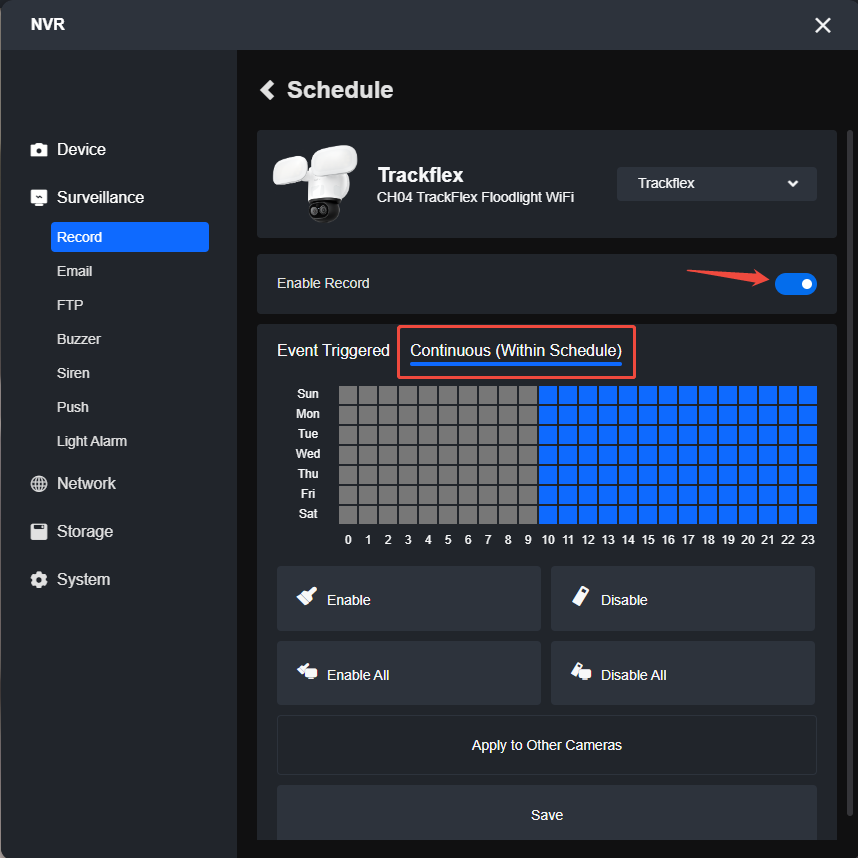
Reolink’s continuous-recording guide explicitly distinguishes supported cameras and hardware arrangements. Its schedule controls also differ across generations. For doorbells, our model-specific recording guide examines the power and subscription questions separately.
Compare storage using recorded hours
At a steady 2 Mbps, one camera produces approximately 21.6 decimal GB over 24 hours. At the same bitrate, two hours of recorded events produce approximately 1.8 GB. The second policy uses much less storage, but it does not contain the other 22 hours.
These are simplified calculations, not a product benchmark. Audio, variable bitrate, pre/post-event segments and filesystem overhead affect actual usage. The number of alerts is also not the same as the amount of video: a long event can be one alert, while many overlapping alerts can refer to one recording.
Use our storage and data calculator with a measured or realistic daily recording duration. The retention guide then explains how to compare the estimate with the oldest video that actually plays.
Continuous local recording does not automatically consume continuous internet data
A camera saving to its own card or a local recorder can store a full timeline without uploading that full timeline to a cloud service. Remote viewing, cloud copies and notifications may still use internet data. The route the video takes matters as much as the recording mode.
Conversely, a cloud-only arrangement can depend on an active upload connection. Event-only cloud recording can reduce data use compared with a continuous upload at the same bitrate, but its consumption depends on how much activity is saved.
Separate local network traffic from internet-provider usage when budgeting. Our storage architecture guide and offline-operation guide show the relevant distinctions.
A mixed policy can be better than one setting for every camera
A house might continuously record a vulnerable side entrance while saving events at a low-activity shed. A shop might keep a continuous timeline during working hours and use an appropriate after-hours policy. These are planning examples, not universal recommendations for particular properties.
Where supported, saving continuously while keeping searchable event markers avoids relying exclusively on detection to preserve footage. Reolink’s motion-recording instructions describe different event and timer behavior across hardware, including limitations on older interfaces. Verify the actual result rather than assuming every recorder overlays the same markers.
Keep the arrangement understandable. A different schedule on every channel becomes difficult to maintain unless the reason and responsible person are recorded. Note why each view exists and what it is expected to save.
Privacy and retention still need attention
Continuous recording gathers more incidental activity than selected clips. Aim at the required area, review audio separately and choose an appropriate retention period. Longer history is not automatically justified simply because the disk has spare capacity.
Check local requirements for domestic, shared-space or workplace surveillance. Our camera-privacy guide gives jurisdiction-specific examples rather than a blanket consent rule. This article’s storage comparison is not a determination of what recording is lawful at your location.
A privacy mask and an activity zone may also behave differently. A zone that reduces alerts can leave the excluded area visible in continuous recordings. Test both live output and saved clips when configuring privacy controls.
Test the policy with an event and a quiet interval
First, note the time and have a consenting helper walk through the intended approach at an ordinary pace. Later, play and export the saved clip. Check when the recording begins, whether it includes the whole interaction and whether the correct camera and timestamp are shown.
Next, choose a quiet time with no obvious movement. On a continuously recording system, you should be able to play that interval while it remains within retention. On an event-only system, its absence may be normal. This second test catches the common mistake of assuming a busy event list proves continuous history.
Finally, test notifications separately and repeat in the conditions that matter, such as after dark or from the other approach direction. Do not factory-reset the system if one stage fails; follow the narrower recording, storage or motion diagnosis.
Questions that determine the better choice
| Question | What the answer suggests |
|---|---|
| Do I need to investigate an unknown time? | Consider a continuous timeline for the relevant location |
| Is continuous operation supported in this exact power mode? | If not, change the hardware arrangement or accept event-only limitations |
| Can I store enough history at useful quality? | Calculate retention before reducing image quality |
| Are alerts the annoyance rather than recording? | Review notification settings separately where supported |
| Does my real movement test produce complete clips? | Use the result, not the detector’s marketing range, to judge event-only adequacy |
Frequently asked questions
Can motion detection remain enabled during continuous recording?
On supported systems, yes: detection can create markers or alerts while the timeline is saved continuously. Check the exact recorder and camera because older or simpler products handle the combination differently.
Does 24/7 recording mean the camera never misses anything?
No. It describes the intended schedule, not immunity to power loss, storage failure, blocked views or poor image quality. Verify saved playback and health warnings.
Will motion recording wear out a card less quickly?
Saving fewer hours can reduce the amount written, but activity, bitrate and card suitability determine the workload. Use supported endurance-rated media and do not treat a longer calendar history as proof of card health.
Which mode should I choose for a front door?
Match the objective. Event clips may serve visitor interaction, while investigating unknown incidents may justify continuous history on suitable equipment. Test the whole approach and package area before deciding.