NVR or DVR Hard Drive Not Detected? Diagnose Storage Errors Without Losing Footage
The cameras still appear on the monitor, but the recorder beeps and displays No HDD. It is easy to assume that the hard drive has failed. That is one possibility, but a changed power supply, unsupported replacement disk or loose connection can produce a similar outcome.
Begin with the exact storage status and whether the recorder previously saved footage. A new empty disk awaiting initialization is different from an old disk suddenly labelled uninitialized. Do not press Format on a drive containing important history until you understand what that action will remove.
This guide covers authorized owner-level checks and decisions about service. It is not an instruction to open sealed drives, work on live electronics or handle an evidential recorder without the responsible investigator’s agreement.
First decide whether preserving old footage is the priority
If the recorder contains the only potential copy of an important event, avoid repeated experiments. Record its model, displayed error, time and current state, and export any relevant channels still accessible. Preserve the original drive rather than swapping it between unrelated recorders.
Ask the appropriate manufacturer support or recovery specialist how to preserve the storage before further operation. Where continued surveillance is needed, arrange an authorized alternative recording path instead of repeatedly restarting the only potentially recoverable media.
Our footage-recovery guide explains the difference between an inaccessible drive and overwritten data. A normal repair procedure for an empty recorder may be the wrong first action for a recorder holding an incident.
Read the status literally
| Reported state | What it may mean | Next useful question |
|---|---|---|
| No HDD / disk not found | The recorder cannot identify its expected storage | Is the storage installed, compatible and correctly powered? |
| Uninitialized | The system sees media but does not regard it as ready for recording | Is it a genuinely new empty drive or previously used storage? |
| Abnormal / error | The device reports a storage problem requiring model-specific diagnosis | What is the exact error and can any recordings still be exported? |
| Full | Allocated capacity is used | Is overwrite enabled and are new recordings continuing? |
| Healthy but no new clips | Saving, channel allocation or schedule may be wrong | Does a controlled event produce a new file? |
| Degraded array | A supported multi-disk arrangement has lost part of its expected redundancy | What is the approved replacement and rebuild procedure? |
These are broad categories, not universal manufacturer definitions. Capture the exact message and consult the relevant manual rather than assuming two products use the same term identically.
Confirm what storage the recorder actually uses
Most conventional NVRs and DVRs in this context use internal hard disks, but some compact recorders use cards or other storage arrangements. The menu may still use a label such as HDD even when the hardware differs.
Swann’s current storage-error guide explicitly separates internal-HDD and microSD recorders. It also asks owners to note recent power, adapter and storage changes. That is why identifying the model comes before opening the box.
For card-based equipment, use our microSD diagnosis. Do not buy a 3.5-inch drive for a device that has no supported internal bay simply because the screen mentions a disk.
If the recorder is new, check the purchase configuration
Some recorder listings offer versions with or without a drive. Check the order details and included-equipment list. A live multi-camera display can function even when no recording disk was supplied.
If a new empty drive is fitted and recognized, the manufacturer’s initialization process may be required before saving begins. Confirm its compatibility and that it contains nothing you need before proceeding. Initialization is a purposeful setup step, not a harmless diagnostic button for every storage fault.
Keep the model and installed-capacity information with the receipt. It prevents future confusion between a recorder’s supported maximum and the amount actually installed.
If the drive was recently replaced, verify compatibility
Check the exact disk model, form factor, interface and capacity against the recorder’s hardware revision and firmware. A SATA connector and a surveillance label do not guarantee support. Some recorders impose both per-drive and total-capacity limits.
ANNKE’s installation guidance provides a manufacturer example of model-specific capacity and drive requirements. It also distinguishes USB export media from supported recording storage in the systems it describes. Do not transfer those rules to every recorder, but use them as questions to resolve for your own.
Our hard-drive selection guide explains how capacity and workload differ. Replacing a supported disk with the largest inexpensive model available can introduce a new problem even when the old drive really failed.
Check the power arrangement without improvising
Inspect the accessible power connection and the label on the supply. Use the recorder’s specified adapter or an expressly compatible replacement. Physical plug fit alone says nothing about voltage, polarity or current capability.
A recorder may display its interface while the storage system does not receive suitable power under load. Note whether the fault began after replacing an adapter, adding devices or a power interruption. Follow the manufacturer’s diagnostic sequence rather than modifying the supply.
Do not open a power adapter or mains-powered section of a recorder. Stop for unusual heat, burning smell, liquid ingress or visible electrical damage and obtain qualified assistance. Restoring recordings is not worth an electrical injury.
Internal connections: only where user servicing is supported
Some manufacturers provide an owner procedure for installing or checking the storage drive. Follow the exact shutdown, power-disconnection and access instructions, and only perform the work if it is within your competence and the product’s supported servicing scope.
A drive can have separate data and power connections. A technician may use controlled connection or cable tests to isolate a fault, but do not touch internal connectors while powered or pull components indiscriminately. Keep screws, mounting and cable routing as the manufacturer specifies.
If the recorder is sealed, under a managed-service arrangement or contains material requiring preservation, use the responsible provider. A universal dismantling tutorial is not suitable for every recorder.
What a controlled replacement test can establish
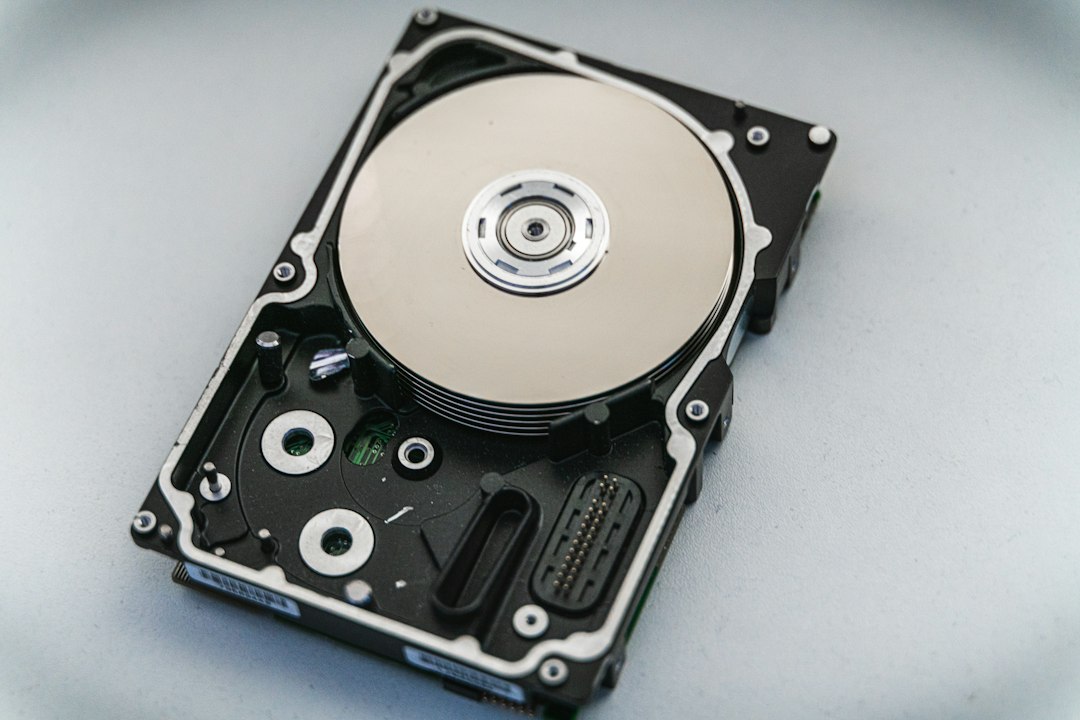
A supported empty known-good drive can help a qualified owner or technician distinguish the original media from the recorder. Keep the original safely aside if its contents matter, and change only one relevant component at a time.
If the replacement is recognized and records correctly, the original drive or its compatibility becomes the stronger suspect. If neither works, power, the recorder’s storage connection or another hardware/configuration issue needs attention. The test narrows possibilities; it does not prove that every other component is healthy.
Do not put the original drive into another recorder and accept an automatic initialization prompt. That can change data while adding little useful diagnostic information. Specialized recovery should use a preservation-aware process.
Full storage is not the same as failed storage
A looping recorder is expected to use most of its available recording space. With the intended overwrite policy enabled, it replaces the oldest video as new material arrives. A full indicator is therefore not enough to justify a new drive.
Check whether a fresh controlled event appears in playback and whether the oldest retained time changes normally. If overwrite is disabled, recording may stop at capacity; changing that policy can then erase old material as new footage arrives, so export required clips first.
The retention guide explains the calculation and verification. Per-channel quotas and protected recordings can also affect the available space independently of the disk’s headline capacity.
Healthy disk, empty timeline: inspect the recording configuration
If the recorder identifies storage normally, check channel recording enable, schedules, camera credentials and the stream being saved. Verify that the correct storage group or allocation includes the affected channel where the system offers those controls.
Clear playback filters and check the camera clock before deciding files are absent. A one-hour shift or wrong date can make recordings appear outside the interval being searched. A person-only filter can hide unclassified activity even when continuous video exists.
Our recording diagnosis addresses this branch. A replacement hard drive is unlikely to correct a schedule that was never enabled.
Degraded RAID and multi-drive systems
Some recorders use redundancy; others simply allocate cameras or time across several disks. Identify the arrangement before removing anything. The presence of two drives does not tell you whether either can be removed without losing access to recordings.
For a degraded supported array, follow the manufacturer’s exact replacement and rebuild process or use the installer. Record drive-bay positions and warnings; do not swap drives repeatedly to see which order boots.
Rebuilding and availability protection are separate from incident backup. Preserve important clips independently where possible, and remember that a shared deletion or recorder theft can affect the entire array.
Unusual noise, recurring disconnections and health warnings
Describe the noise and source carefully. A fan, buzzer and hard drive can make different sounds. Do not disable a recorder’s health alarm simply because it is annoying; first identify the condition that triggered it.
A storage-health report can provide useful evidence, but a pass is not a guarantee that every recording operation succeeds. Repeated dropouts, failed exports or new disk errors deserve investigation even if one screen says normal.
For beeping rather than a confirmed storage error, use our recorder-warning guide. For a disk that repeatedly disappears or makes new mechanical noises, limit further experimentation and contact support, particularly when the footage matters.
What not to do
Do not freeze a drive, strike it, open its sealed cover or install arbitrary firmware from an unrelated model. These actions are not substitutes for diagnosis and can reduce the prospect of recovering data.
Do not install recovery software onto the same media you are trying to preserve, accept operating-system disk repair blindly or repeatedly initialize the drive to clear an error. A computer not recognizing a proprietary recording format does not prove there are no recordings.
Finally, do not buy a new disk on capacity alone. If the original failure was an unsuitable adapter or damaged recorder connection, the replacement may encounter the same problem.
Verify the repair beyond the storage icon
Confirm expected capacity and a normal supported status, then check every intended recording channel. Create a controlled event, play the recording and export an original sample. Test the period that previously failed, including day-to-night operation where relevant.
Configure appropriate warnings and establish who will respond. Observe whether new recordings continue as the drive fills and whether the retained history meets the plan. A healthy-looking dashboard without verified files is incomplete evidence of recovery.
Keep the removed disk, replacement details and service record as appropriate. The backup guide helps prevent one recorder fault from becoming the loss of every important copy.
Frequently asked questions
Does No HDD mean the drive is definitely dead?
No. Missing or incompatible storage, power and connection faults can produce similar symptoms. Use the exact model’s supported checks.
Can I keep watching live video without a drive?
Some systems can show live images without recording storage. That does not mean the footage is being retained anywhere.
Should I initialize a disk that used to record normally?
Not before understanding the fault and preserving required history. A previously used disk suddenly reporting uninitialized needs a different decision from a new empty one.
Can an external USB drive solve the problem?
Only if the recorder explicitly supports it for the intended recording role. An export port does not automatically provide primary-storage expansion.