Security Camera Showing the Wrong Date or Time? Fix Time Zones, DST and Clock Sync
The delivery arrived at 2 p.m., but the camera’s timeline puts it at 1 p.m. Another camera shows the correct hour while the exported filename appears different again. Before adjusting the clock, identify which timestamp you are comparing: the camera’s image overlay, the recorder’s timeline and the app’s displayed time do not always come from the same place.
Check time zone and daylight-saving settings for a consistent hour offset, then check the supported clock-synchronization method for drift or an obviously wrong date. If an incident is involved, document the discrepancy and preserve relevant footage before making changes. Correcting future timestamps does not retroactively make an old recording’s displayed clock accurate.
First preserve the time information you already have
Write down the device’s displayed date and time alongside a reliable reference, noting when you compared them and the relevant time zone. Keep a screenshot or photograph of the display if appropriate, without replacing the original video with that image.
For an active investigation, follow the responsible investigator’s instructions before changing settings. The College of Policing’s CCTV guidance emphasizes recording clock discrepancies during retrieval. That is different from editing the timestamp until it appears to match your recollection.
Use our export guide to preserve original files and context. A change intended to improve the system should not make an existing incident harder to interpret.
Which clock is wrong?
| Symptom | Start by checking | Useful comparison |
|---|---|---|
| Exactly one hour ahead or behind | Time zone and daylight-saving configuration | Current local time, camera overlay and recorder settings |
| Several whole hours different | Selected time zone and whether an app displays another location’s time | Recorder monitor versus phone or browser |
| Minutes or seconds increasingly wrong | Supported synchronization and whether it succeeds | A dated series of clock comparisons |
| Wrong year or default date after restart | Initial setup, synchronization, power history and model-specific faults | Before and after a normal supported restart |
| Only one camera differs | That camera’s settings and how its recorder manages time | Other channels sharing the same recorder |
| Overlay correct, filename or app different | Display conversion, time-zone interpretation and file metadata | The actual video event, not the filename alone |
The symptom is a clue rather than a verdict. A manually set clock can happen to be one hour wrong, while a time-zone problem may be combined with ordinary clock drift.
Understand time, time zone and date format
The device’s time represents when it believes an event occurs. A time zone determines how that time is expressed for a location. A date-format setting changes whether the display reads year-month-day or another order; it does not necessarily correct the underlying time.
Similarly, switching between 12-hour and 24-hour notation does not fix an AM/PM error in the source. Check both the actual event and display convention. An apparently wrong month can simply be a date-order misunderstanding, so compare more than one clearly identified day.
Use the camera or recorder’s documented location-based settings where available. Do not guess a fixed UTC offset for a place whose seasonal clock rules differ from the current date.
Daylight-saving settings and the one-hour problem
A system can be wrong after a seasonal change because daylight saving is disabled, configured for the wrong region or applied twice through manual adjustments. A camera and its recorder can also disagree if each handles the change differently.
Confirm the rules for the property’s actual location and use the manufacturer’s supported configuration. Do not copy another country’s start and end dates or manually move the clock an hour every time without understanding the automatic setting already enabled.
Reolink’s time-error guidance identifies time zone and DST among the checks for its products. Apply the diagnosis to the exact hardware and software rather than assuming every brand exposes identical controls.
The repeated hour can make playback confusing
When a local clock moves back, the same displayed hour can occur twice. A recording system’s timeline and export behavior depend on how it stores and presents time. Do not assume there is only one possible clip labelled with that hour.
Search a wider interval, inspect the actual sequence of events and preserve surrounding context. Note the date, location and observed settings. If an incident crosses the transition, ask the manufacturer or investigator how to retrieve both relevant portions correctly.
When clocks move forward, a missing local-time label can reflect the clock change rather than a recording outage. Confirm the real chronology before describing it as an hour of lost video.
Use NTP correctly where the product supports it
Network Time Protocol, usually shortened to NTP, lets supported equipment synchronize with a time source. It is different from selecting the display time zone. A device can synchronize its clock yet show the wrong local hour because the zone or DST configuration is incorrect.
Use the supported time server or the organization’s approved source, then check whether synchronization succeeds. On a managed network, ask the administrator about permitted connectivity rather than disabling the firewall to make a test pass.
Internet access is not the only possible time architecture: some installations use an approved local time source. The correct arrangement depends on the recorder, network and manufacturer support. Do not point equipment at arbitrary servers found in a forum and assume the result is reliable.
A manufacturer example: Reolink Client
Reolink’s Client instructions place date/time configuration under System and distinguish format, time zone, DST and synchronization. The guide also notes that its battery-powered cameras do not expose the same NTP settings. A missing NTP button is therefore not automatically a fault.
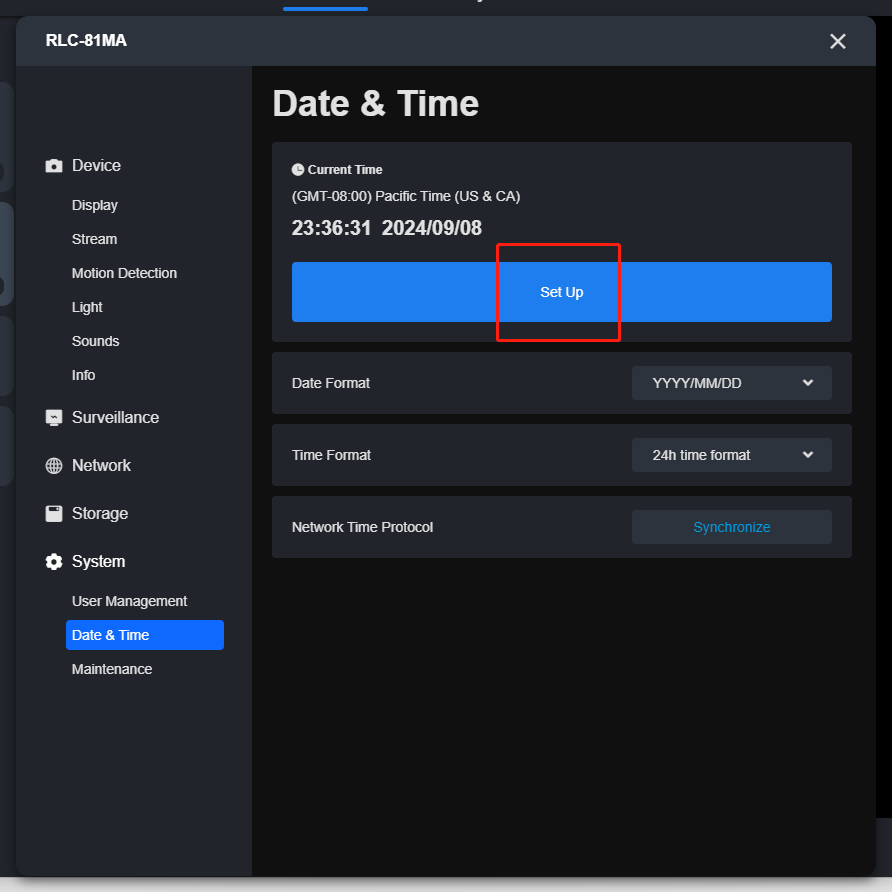
After saving the supported settings, check a newly recorded event rather than trusting the configuration screen alone. Also check any connected recorder, since it may manage camera time or display the recording through its own interface.
Recorder, camera and phone disagreements
A standalone camera can stamp its image while a recorder organizes the stream using separate metadata. An app may then display timestamps using account, device or phone-related settings. Establish which layer supplies the incorrect value before changing all three.
Compare the recorder’s local monitor, the manufacturer’s app and an exported original clip for the same recognizable event. If the image overlay is correct but the filename differs by a consistent zone offset, do not immediately rewrite the camera’s clock to match the filename.
For mixed-brand systems, time management is another compatibility question. The multi-brand NVR guide explains why a working live picture does not prove complete integration of every feature.
A practical clock-offset example
Suppose a trusted reference shows 14:12 while the recorder shows 14:05 at the same observation. The recorder is seven minutes slow at that moment. An event known to occur at 13:00 real time might therefore be found near 12:53 on the recorder, so begin searching around that point with additional context.
Record the relationship explicitly: recorder seven minutes behind reference at the stated check time. Do not write merely time wrong. That description is much easier for another authorized person to use.
Crucially, the measured offset is not proof that it was identical yesterday. A restart, drift, automatic correction or manual adjustment may have changed it. Preserve those uncertainties instead of presenting a calculated time as certain evidence.
Why the wrong clock can look like missing footage
Playback often begins with a calendar and time filter. If the recorder’s date is wrong, new footage can appear under a different day or year. Event schedules and arming periods may also be interpreted against that incorrect clock.
Search broadly before formatting storage or replacing a drive. Clear event-type filters and compare local and cloud destinations. An apparently empty afternoon may be intact under the device’s wrong date.
Our recording diagnosis starts with those non-destructive checks. Fixing the clock for future events and retrieving existing history are related but separate tasks.
Clock resets after a power interruption
Note whether the time resets consistently after a restart or only after a longer outage. Check whether the device subsequently synchronizes and whether the network was available. Record any other lost settings or storage errors.
The cause could involve configuration, failed synchronization or hardware-specific retention of settings. Do not diagnose a replaceable internal battery from the symptom alone, because not every camera or recorder uses the same arrangement.
Use the manufacturer’s support procedure and do not open sealed or mains-powered equipment without an approved service process. The backup-power guide helps reduce interruptions but does not substitute for fixing a device that cannot maintain its intended configuration.
Correct the future without falsifying the past
Keep a note of the old settings, measured discrepancy and change time. Apply the supported configuration when it is appropriate to do so, then create a known test event. Confirm that the new overlay and playback position match the reference as expected.
Old video may retain its original embedded timestamp or metadata. Do not overwrite that original with an edited clock or silently rename files to imply a certainty you do not have. Provide explanatory notes and separate working copies where needed.
If an investigation is underway, coordinate the change with the responsible people. The aim is to improve future operation while preserving an understandable account of the existing recordings.
Check schedules and exports after the correction
Review recording periods, alert quiet hours and any automated actions tied to local time. A schedule that seemed correct while the clock was wrong may now cover a different real period. Test one representative event in the intended window.
Export a short original recording and check it on the normal receiving device. Confirm the date, event order and time-zone interpretation rather than relying solely on a filename. Keep the result with your maintenance record.
For devices at several properties, label each location and time zone clearly. Comparing two properties through one phone is easier when you know whether the interface presents property-local time or another convention.
A small maintenance record prevents repeated confusion
| Record | Useful detail |
|---|---|
| Device and location | Camera/channel, recorder and property’s time zone |
| Observed discrepancy | Reference time, device time and date of comparison |
| Configuration | Zone, DST method and supported synchronization source |
| Change | What was altered and when |
| Verification | Known test event, playback position and exported-file result |
| Remaining uncertainty | Whether an earlier incident may have had a different offset |
Review time after installation, substantial network changes and a relevant seasonal transition. The exact maintenance schedule depends on the equipment and purpose; the important point is that somebody actually compares a saved event with reality.
Frequently asked questions
Why is my camera exactly one hour wrong?
Time-zone and daylight-saving configuration are strong starting checks, but inspect the actual settings rather than assuming the cause. Manual clock changes can also produce an hour offset.
Does NTP automatically select my local time zone?
Do not assume so. Clock synchronization and local display rules are separate functions. Check both in the product’s documented setup.
Will changing the clock fix old recordings?
Not necessarily. Existing overlays and metadata can remain unchanged. Preserve originals and document the discrepancy rather than silently altering them.
Should all camera timestamps match my phone?
They should represent the intended chronology, but interfaces may display different time zones or conventions. Compare the same event and understand each display before forcing every label to look identical.