Security Camera Not Recording? Find the Failed Stage Before Resetting It
The camera shows a live picture and your phone receives an alert, yet playback contains nothing useful. That combination is possible because viewing, detecting, saving and retrieving video are separate functions. Restarting everything or formatting the card before checking those stages can erase the very footage you are trying to find.
Start by confirming the recording destination, clearing playback filters and checking storage status and the recording schedule. Then run a controlled event at a known time. The result will tell you whether the camera failed to save a clip, saved it somewhere else or simply failed to display it in the view you opened.
This guide is for a camera that is reachable or a recorder you can access. If the device has no power or no live view, begin with our camera power and connection guide. That is a different starting problem.
Before fixing anything, protect recordings you may need
If an incident prompted the check, note its approximate real time and export any relevant material that remains playable. Preserve the camera’s displayed time too, particularly if it differs from your phone. Do not delete a channel, remove a device from its account or cancel a service while you are still identifying what history exists.
Take screenshots of the storage message and recording settings. A factory reset, initialization or format is not the same as a normal restart. Read the confirmation text and the manufacturer’s explanation before accepting any action that may erase data.
Where valuable footage is missing and the storage appears damaged, stop experimental repairs and consult the appropriate support or recovery specialist. Our recovery guide separates a search problem, a failed device and material that has already been overwritten.
Choose the branch that matches what you see
| Observation | Most useful first check | Do not assume |
|---|---|---|
| Motion alert arrives, but no clip appears | Recording destination, storage health and event-saving rules | Detection sensitivity is necessarily the problem |
| Cloud history is empty, but the camera has a card | The separate local playback view | The camera saved nothing |
| Yesterday plays, today does not | Storage-full behavior, schedule, power interruptions and current clock | Old playback proves new recording is healthy |
| Today plays, last week does not | Retention and overwrite history | A recent hardware fault erased everything |
| One recorder channel has gaps | That channel’s schedule, credentials, stream and storage allocation | The entire drive has failed |
| No channels have new recordings | Shared storage, recording enable state and recorder health | Every individual camera failed simultaneously |
| Clip exists, but playback errors | Supported viewer, stream and export test | The saved file is definitely absent |
The table narrows the investigation; it does not diagnose the device from one symptom. Record what works at each stage so that a later change has a clear before-and-after comparison.
1. Open the correct storage library
Identify whether the camera records to its own microSD card, a recorder, a hub, the manufacturer’s cloud or several destinations. Then open the playback interface for that destination. The app’s general Events screen may not be the complete local timeline.
Swann’s standalone-camera troubleshooting guide gives a concrete example: certain supported cameras keep local clips in a different part of the app from the cloud Playback tab. A blank cloud view therefore does not establish that their cards contain no footage.
On a recorder system, make sure you selected the current device and channel rather than an old standalone camera entry. Changing how the same camera is connected can leave more than one entry in the app, each associated with a different recording location.
2. Clear filters and check the time
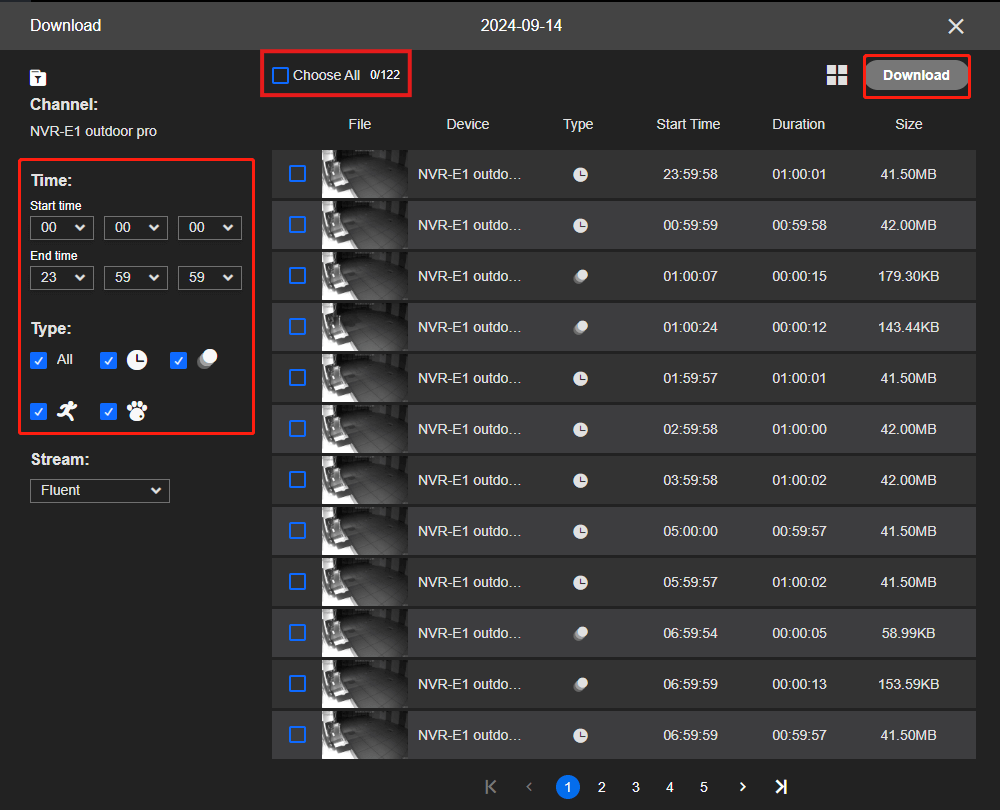
Select the correct date and remove person-only, vehicle-only and other event filters. If continuous recording is enabled, search the full timeline as well as the event list. A classification failure can hide a marker while the ordinary video still exists.
Compare the camera’s displayed time with a trusted clock. An hour difference may be a time-zone or daylight-saving configuration issue; a larger date error may put new footage on an unexpected calendar day. Note the discrepancy before changing it if the recording concerns an incident.
The wrong-date-and-time guide explains how to document an offset and correct future recording without pretending an old overlay has been repaired. Searching the right calendar window is a non-destructive first step.
3. Read storage status before pressing Format
Open the camera or recorder’s storage-management screen. Distinguish a healthy full device from a missing, uninitialized, read-only or abnormal one. The exact wording matters, so record it verbatim for support.
A healthy full disk with overwrite enabled may be functioning normally. A full disk configured to stop instead can explain why older clips play but nothing new appears. An uninitialized brand-new empty drive is different from an existing drive suddenly reporting that state after an incident.
Use our memory-card troubleshooting guide for card-specific symptoms or recorder disk diagnosis for HDD errors. Preserve required footage before any authorized reformatting.
4. Check recording enable and the whole weekly schedule
A camera can stream while saving is disabled. Look for the global recording switch and any per-channel recording control. Then inspect every relevant day, including weekends and holiday profiles where supported.
Identify whether the schedule saves continuously, on events or not at all. Copying Monday’s configuration may require an explicit action; selecting an event type may leave its hours disabled. Do not interpret a colored timetable without checking the legend for that product.
Compare the recording modes against your expectation. If the camera is set to save motion only, the lack of video at an uneventful time is normal, not evidence that continuous recording is broken.
5. Separate detection from the action that saves a clip
When motion is recognized, the system may offer separate actions such as a push notification, siren, email and recording. Check that the relevant rule actually enables recording to the intended destination. An alert alone proves neither successful storage nor a complete clip.
Conversely, if there is no alert, inspect saved playback before declaring an event missing. Quiet hours, phone notification permissions or a selected alert filter can suppress a message while the video remains available.
Manufacturer workflows differ. Wyze’s Battery Cam Pro guide, for example, identifies model-specific event and detection controls. Use instructions for your exact model rather than applying every Wyze or other-brand setting to all cameras.
6. Confirm the plan and account permissions
A free trial can temporarily enable cloud recordings or smart features that are not part of the ongoing free service. Check the active plan, which cameras it covers and whether the subscription belongs to the account you are currently using.
A shared user may have live-view permission without the same playback, download or administration rights as the owner. Ask the legitimate administrator to check the relevant settings rather than resetting the camera to work around a permissions issue.
For subscription-free local recordings, confirm the exact functions advertised for the model and storage arrangement. Our subscription-free buying guide distinguishes local retention from a free live feed.
7. Check the path between camera and recorder
A recorder may show the camera online while failing to save the expected stream or analytics events. If the problem began after changing a password, camera model or integration, inspect the channel status and supported configuration.
Mixed-brand systems need particular care. Live video compatibility does not prove that motion events, audio and all recording controls are supported. Our NVR compatibility guide provides a pre-purchase and troubleshooting checklist for those separate functions.
Change one setting at a time and keep the original configuration. Do not expose the recorder to the public internet or disable router protection as a generic fix for a local saving problem.
8. Look for a power or connection pattern
Compare gaps with router restarts, low-battery alerts and household power interruptions. If several channels stop together, investigate the shared components. If only one stops when its spotlight activates, record that correlation for the manufacturer rather than assuming the card is at fault.
Some local storage can continue without internet on supported devices, while remote retrieval and cloud uploads stop. A phone unable to reach yesterday’s clips during an outage is not necessarily proof the clips disappeared.
Use the offline-recording guide to understand the architecture and the backup-power guide to plan the whole path. A battery in one camera does not keep a separate router and recorder running.
9. Test a new recording deliberately
Choose a time, note the camera’s current clock and have an authorized person walk through the relevant view. On an event system, allow the manufacturer’s normal time for completing and indexing a clip before looking for it. On a continuous system, also choose a quiet interval to test.
Open the correct destination, clear filters and attempt playback. Export a short original recording and play it outside the app. Record which stage succeeded: detection, alert, saved clip, playback and export.
This small test is more useful than leaving the camera alone overnight and hoping a vague recording icon means success. It gives support a repeatable event and a precise failure point.
10. Use restarts and updates selectively
A documented restart can clear a temporary state without deliberately erasing the configuration. Preserve available footage and settings first, and use the recorder’s approved shutdown procedure rather than repeatedly disconnecting power during disk activity.
Check official firmware and app guidance when the failure began after a software change or a known compatibility issue is relevant. Install only the correct package for the hardware revision and maintain power during the update.
Reserve factory resets for cases where the manufacturer recommends them after narrower checks. Have owner credentials and a restoration plan available. A reset cannot restore video that was never saved or repair a physically failing card.
What to send support
| Information | Why it helps |
|---|---|
| Camera and recorder model, hardware revision and firmware | Identifies applicable features and instructions |
| Recording destination and exact storage message | Separates card, recorder and cloud issues |
| Known test-event time and displayed camera time | Makes the search reproducible |
| Schedule and selected event actions | Shows what the system was asked to save |
| Whether old and new clips play | Distinguishes retention, current writing and playback |
| Recent changes and steps already completed | Avoids repeated resets and unnecessary data loss |
Share that information through the official support channel, not a public post containing passwords or private recordings. Remove unnecessary personal details from diagnostic screenshots.
Confirm the repair remains effective
After the first successful clip, check again under the conditions that previously failed, such as at night, during a scheduled period or through the normal remote connection. Verify that the oldest timeline also behaves as expected as storage fills.
Set an appropriate reminder in your own maintenance routine to play and export a recent sample. The backup guide explains how to preserve incidents independently. A single live picture after rebooting is only the beginning of verification.
Frequently asked questions
Why do I receive alerts without recordings?
Detection and notification can work while storage or saving rules fail. Check the destination, active plan and recording action before changing sensitivity.
Should I format a card that says full?
Not automatically. Full storage can be normal under loop recording. Check whether new clips are being saved and preserve required history before any destructive action.
Can a camera record without an internet connection?
Some supported local-storage arrangements can, but cloud upload and remote access have different dependencies. Verify the exact model and setup instead of assuming universal behavior.
What proves the issue is resolved?
A new event is saved in the expected place, plays and exports correctly, and remains reliable under ordinary operating conditions. An online status indicator is not enough.