Security Camera SD Card Not Working? Diagnose Detection, Formatting and Recording Errors
A camera can stream perfectly while its memory card saves nothing. It can also report that the card is full while recording normally, or show a formatting error that has nothing to do with the Wi-Fi signal. Those symptoms should not all receive the same instruction to reset and format.
First decide whether you need anything already on the card. Then distinguish a card that is not detected from one that is detected but cannot save or play recordings. Check the exact camera’s compatibility and storage settings before testing a known-good replacement. Formatting belongs later in that process because it deliberately removes existing data.
This guide covers the general microSD diagnosis. For Tapo’s specific playback and schedule workflow, use our Tapo recording guide. For a recorder’s internal drive, use NVR and DVR hard-drive troubleshooting instead.
Stop before formatting valuable footage
If a theft, accident or other important event prompted the check, preserve accessible recordings and the exact storage error. Do not keep recording new test clips onto media that may contain the only remaining copy of the incident.
Use the camera’s documented shutdown or card-removal procedure. Removing storage while it is writing can create another problem. If the device is inaccessible or the footage is important enough to require professional handling, obtain help rather than dismantling a weather-sealed camera at height.
A computer offering to format an unfamiliar card is not telling you that the card contains nothing useful. Decline that action until the recording format and recovery options are understood. Our footage-recovery guide explains how troubleshooting priorities change when preservation matters.
Read the actual error message
| Symptom | Start with | Do not conclude yet |
|---|---|---|
| No SD card or card absent | Correct insertion, approved capacity and a supported replacement test | The camera’s entire recording system is broken |
| Card detected, but uninitialized | Whether it is genuinely new and empty or previously contained footage | Initialization is harmless |
| Formatting repeatedly fails | Model compatibility, card condition and known-good media | A different app account will repair the card |
| Card full | Overwrite policy and whether new video is still being saved | The card is defective |
| Old clips play, no new clips appear | Schedule, recording enable, space policy and possible write failure | Successful playback proves healthy writing |
| Capacity appears wrong or files fail after some use | Authenticity, reader compatibility and supported testing on empty media | A displayed capacity proves the card is genuine |
| Card works elsewhere but not in this camera | Camera compatibility, firmware and slot condition | It must be suitable because a laptop reads it |
Keep the message and date with your test notes. A support request saying storage is abnormal is much more useful when it includes the exact wording and whether the card previously worked.
Check the exact camera model and card specification
Find the camera’s model, hardware revision and firmware. Manufacturers can support different capacities or recording modes within a similarly named family. A product description that says microSD support does not establish support for every card size and format.
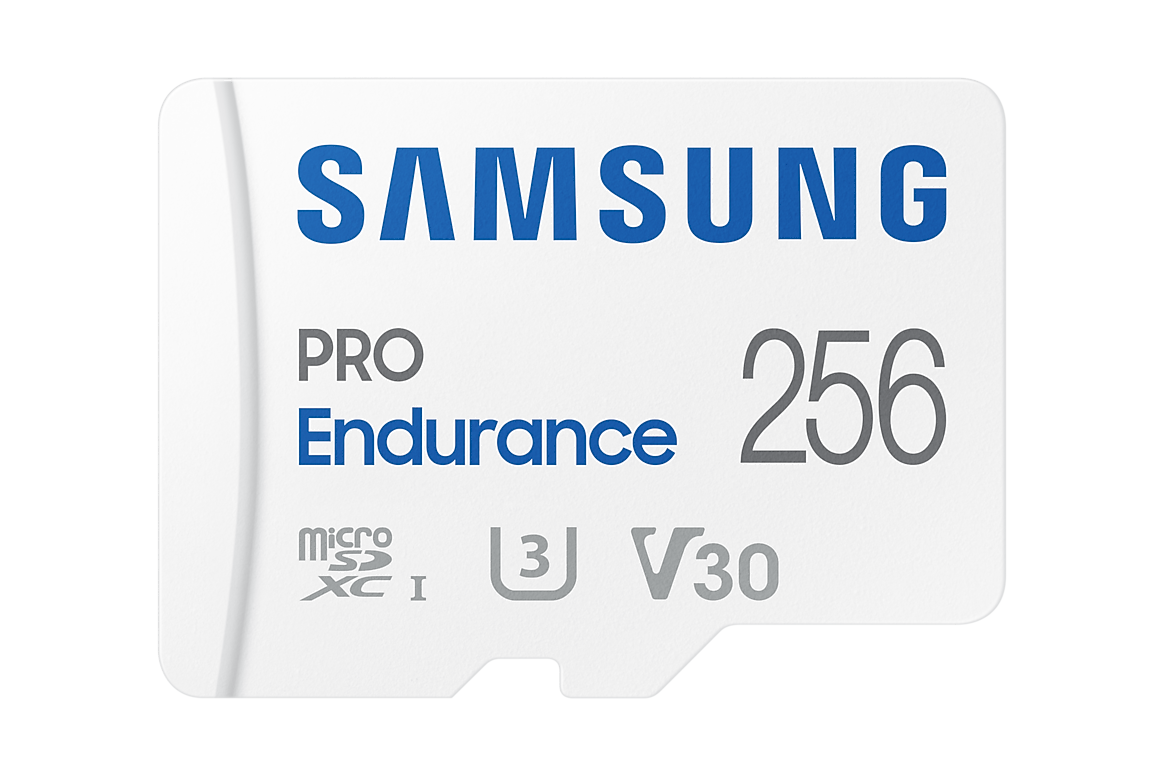
Compare the card’s full model number, capacity and relevant recording specification with the manufacturer’s guidance. High transfer speed and endurance are different properties: a card designed to copy photographs quickly is not automatically the preferred choice for repeated video overwriting.
TP-Link’s compatibility guidance recommends appropriate endurance media and identifies exceptions for particular products. Use the exact listed model rather than rejecting or approving an entire brand. Our camera-card buying guide covers selection in more depth.
Inspect insertion and the accessible slot safely
Follow the manual for powering down, opening any weather cover and orienting the card. Do not force it into the slot or insert tools to make it catch. If it does not seat normally, stop and check the diagram for the exact camera.
Inspect the card for visible damage and the accessible opening for obvious debris or moisture without probing the contacts. Restore the weather seal exactly as instructed. A recording repair should not leave an outdoor camera vulnerable to water ingress.
After restarting normally, inspect the storage page again. A notification sound or mechanical click alone is not enough: the camera should identify the expected card and report a usable state.
A detected card still needs recording to be enabled
A healthy card can sit unused if local recording is switched off, the schedule contains empty periods or the camera is configured to save events that never occur in the selected zone. Check the recording settings separately from push notifications.
Also open the actual local playback interface. Some apps keep cloud events and memory-card footage in different locations. A blank cloud subscription screen does not prove local storage failed.
When the card is recognized and appears healthy, use the recording diagnosis before replacing it. Test a known event and, where continuous recording is enabled, a quiet time as well.
Understand full storage and loop recording
With supported overwrite enabled, a card normally maintains a rolling history by replacing old recordings. It may therefore report little or no free space without being unhealthy. Confirm that a new clip saves and the oldest playable time advances.
If overwrite is disabled, recording may stop when the allocated space fills. Protected recordings or a maximum-age setting can also affect what remains. Read the model’s storage policy instead of repeatedly erasing the card whenever it becomes full.
The retention guide explains how bitrate and recording duration determine the available history. A larger card extends capacity only when the camera supports it; it does not correct a faulty writing process.
When formatting is appropriate
Formatting can be an appropriate initialization step for a compatible new empty card or a manufacturer-directed repair after needed footage has been secured. Use the camera’s approved process and wait for it to complete without interrupting power.
There is no single filesystem instruction suitable for every camera and capacity. Do not force FAT32 or another format simply because a tutorial for a different device recommends it. The camera’s documented requirements take precedence.
Tapo’s card-formatting troubleshooting distinguishes recognition and initialization problems and gives a supported testing path. Those steps should be applied with awareness that formatting erases existing files, not as an automatic first response to a missing incident.
If formatting repeatedly fails or the same error returns quickly, stop repeating it. A card can be worn, incompatible or faulty, and the camera’s slot or power may be involved. A successful format followed by one short clip is not yet proof of long-term reliability.
Use a known-good replacement to isolate the problem
Choose a genuine, supported empty card and test it in the same camera using the documented setup. Keep the original separate if it contains footage you may need. Change only the card at first rather than simultaneously altering firmware, schedules and the network.
If the replacement records reliably while the original repeatedly fails, the original card or its compatibility becomes the stronger suspect. If neither is detected, the slot, firmware or camera hardware deserves investigation. These results narrow the diagnosis; they are not an excuse to open sealed electronics.
Record the two card models and test outcomes for support. Avoid moving an incident card through several cameras, because another device may initialize it or create new files.
Read-only behavior and disappearing files
Sometimes old footage remains readable but attempted new recordings never persist. That can reflect configuration or a writing failure; it is not enough to say the card works because its existing files open. Verify a newly created recording after a normal restart.
An adapter used with a computer can have its own write-protection tab, while the microSD card and camera use a different physical arrangement. Check the reader and adapter documentation without assuming a laptop’s message diagnoses the camera slot.
If a card is no longer reliably writable, replace it through the appropriate warranty or support process rather than relying on utilities promising to make failing flash storage new again. Preserve accessible data before additional testing.
Counterfeit capacity and why speed labels are not enough
A card can report a capacity that does not reflect reliable writable storage. Purchase from an accountable supplier, keep packaging and receipts, and compare the exact product markings with the manufacturer’s information.
A complete write-and-read capacity test can help assess new or expendable media, but it writes data and is inappropriate for a card that may hold evidence. Do not run such a test on the only copy of missing footage. Use a trusted tool and understand its destructive behavior before testing an empty replacement.
Neither a single file copy nor a brief speed test proves that the entire advertised capacity works. The final check still belongs in the camera under its intended recording workload.
Investigate recurring failures beyond the card
Note whether errors coincide with power loss, repeated camera restarts or environmental exposure. A card replaced several times in the same unreliable installation may be a symptom rather than the only cause.
Use the correct power supply and supported firmware, maintain ventilation and follow the camera’s operating limits. Do not modify a power adapter or defeat weather seals to improve access to the slot. Seek service for internal moisture or visible damage.
Where a firmware update is recommended, preserve settings and footage first and use the correct hardware revision. A reset or update cannot recover sectors already overwritten; it addresses future operation.
How to verify the repair
Record an event at a known time, play it, export it and confirm the export opens outside the app. Then test the intended continuous or event schedule over a representative period. Check the night transition and ordinary remote playback where those functions matter.
Once the card has filled under normal use, verify loop behavior if enabled. You do not need to fill a card with synthetic data just to hurry this check. Observe that new recordings continue and that the retained history matches your expectations.
Keep a simple record of card installation date, model and recurring errors. There is no universal replacement interval that fits every capacity, workload and environment. Respond to actual health warnings and the manufacturer’s maintenance guidance.
A useful support report
| Include | Example of useful detail |
|---|---|
| Camera identity | Full model, hardware revision and firmware |
| Card identity | Brand, model number, capacity and approximate installation date |
| Error | The exact storage-page message, not only no recordings |
| Data importance | Whether recordings need preservation before repair |
| Controlled comparison | What happened with a supported known-good card |
| Recording evidence | Known test time, schedule and playback/export result |
Keep account passwords and private clips out of public support posts. Share the minimum required information through the manufacturer’s official route.
Frequently asked questions
Does card full mean I need a new card?
No. It may be normal loop-recording behavior. Check whether new footage is saved and which overwrite policy is enabled.
Should I format the card on a computer?
Only when that is part of the exact manufacturer’s procedure and required footage is already protected. A computer prompt is not permission to erase unfamiliar recording media.
Can the camera work without a card?
Live view and some cloud functions may work, depending on the model. That does not prove local recording works or that any footage is being retained.
Is the fastest card the best replacement?
Not necessarily. Compatibility, genuine capacity and suitability for the recording workload matter alongside speed. Compare the camera’s requirements rather than one prominent number.