Tapo Camera Not Recording to the SD Card? Diagnose Storage, Schedules and Playback
Your Tapo camera can show a perfectly good live picture while saving nothing to its memory card. It can also be recording correctly while the app is showing the wrong storage tab, date or event filter. Before formatting the card or buying a replacement, determine which situation you have.
Work through card recognition, local recording, recording mode and playback in that order. Keep important footage before destructive maintenance. The names and available controls vary by model, hardware revision and app version, so use the examples here alongside the current manual for your camera or hub.
Start by preserving anything you still need
If the missing footage relates to a real incident, stop routine experiments that could overwrite or erase it. Export accessible clips through the supported app process and record the approximate time of the incident. If the card may contain important unreadable evidence, obtain suitable support before formatting it.
A new empty card requiring initialization is different from an older card with potentially valuable recordings. A generic troubleshooting step that says format first should not be followed without considering that distinction. A reset also changes configuration and can make the original cause harder to establish.
Record the camera model, hardware version, firmware, app version and exact card brand, series and capacity. Card names can be similar across generations; a photograph of the packaging and label is more useful than saying it is a fast Samsung card.
Identify the failure before changing settings
| What you observe | Likely branch | Next useful check |
|---|---|---|
| App reports no card or abnormal storage | Recognition, fit, capacity or media problem | Exact compatibility and supported insertion procedure |
| Card is healthy but no new footage appears | Local recording, schedule, privacy mode or power | Controlled event and current recording settings |
| Only short clips appear | Detection-only mode or cloud event tab | Local timeline and model’s continuous-recording support |
| Only today is visible | Date selection or limited retention | Choose the previous date on the card timeline |
| Timeline exists but playback fails | Playback path, media health or client issue | Compare live view, another authorized client and an export |
| Recent footage exists but older video is gone | Loop overwrite or insufficient retention | Storage use and actual oldest available recording |
These branches can overlap. For example, a card can be recognized while failing under sustained writing. The purpose is to avoid treating every symptom as proof that the camera itself is defective.
Check the local-storage view, not only the cloud library
Open the camera’s playback interface and select the SD-card or local-storage source where offered. A Tapo Care event list and the memory-card timeline are not the same collection. The end of a cloud trial does not automatically erase every local recording.
Choose the date explicitly and inspect the timeline around a known event. TP-Link’s local detection-recording instructions show the card-tab and date-selection path. Menu labels may change, but the distinction between storage sources remains the important diagnostic point.
If you find the clip locally, the immediate problem was retrieval or notification rather than a total recording failure. Export a sample so you know how to obtain it again without relying on the cloud event screen.
Verify that local recording is enabled
Inspect the camera’s Storage & Recording settings and the local-recording switch. Also check any privacy mode, home/away routine or scheduled action that intentionally stops recording. A household member may have enabled a privacy function without realizing its effect on the timeline.
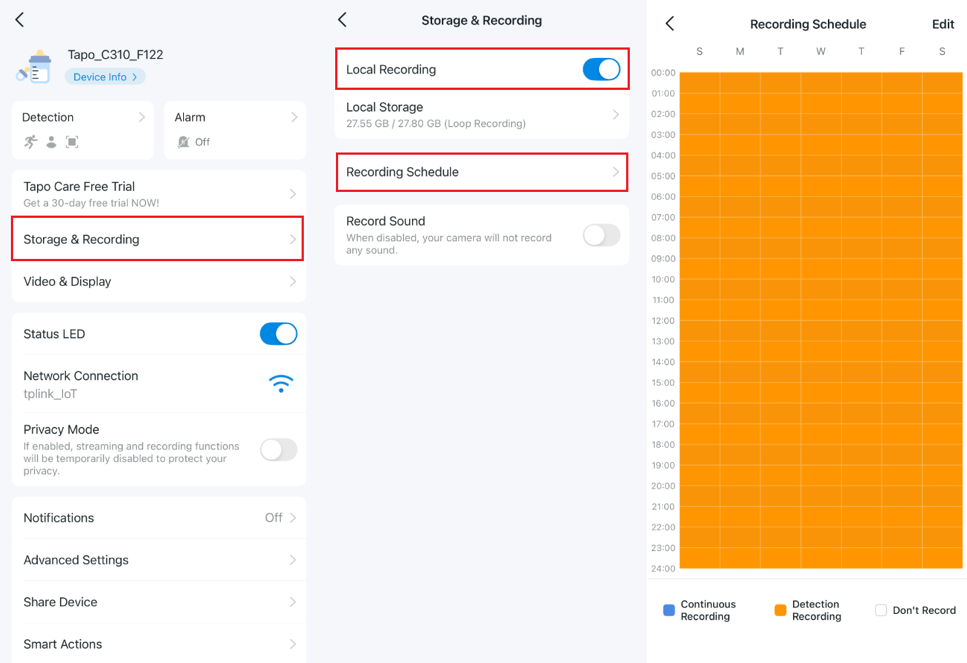
A full-looking weekly grid can still be event-only. Read the legend and inspect the intended periods rather than assuming colored blocks mean every second is saved. Save any changes and reopen the schedule to confirm they persisted.
Use a short controlled test after changing one item. Note the time, walk through the normal view, then inspect the local timeline. Do not change five unrelated settings and lose the ability to identify which one resolved the problem.
Confirm whether your model supports the recording mode
Many plug-in Tapo cameras support continuous local recording, while particular battery models save detected events. Other products have distinct wired operating modes. The exact model and power configuration decide the answer, not the presence of a memory-card slot alone.
The official continuous-recording guide explains the schedule and playback controls for supported products. Check the model-specific page when a menu is absent instead of assuming the app is broken or that every newer battery camera has the same limits.
A solar panel normally supports the power arrangement; it does not automatically unlock a recording feature. For hybrid doorbells, our doorbell recording comparison explains why supplying wires and enabling a particular operating mode can be different things.
Check card compatibility precisely
Confirm supported capacity, speed requirements and any stated exceptions for the exact camera or hub revision. A card designed for intensive continuous writing is a more relevant starting point than choosing solely by its maximum advertised transfer speed.
TP-Link’s current compatibility page recommends endurance-oriented media, gives tested examples and lists particular incompatible series and variants. Treat those details as model and product information to verify, not permission to generalize that an entire brand works or fails.
Buy from an accountable seller. Counterfeit capacity and damaged media can produce behavior that initially resembles a settings problem. Keep the receipt and exact identifiers so a failed new card can be evaluated or returned rather than repeatedly reformatted.
If the card is not recognized
Follow the camera’s documented shutdown and insertion instructions. Do not force the card, touch internal parts or remove storage while the device is actively writing unless the manufacturer specifies a safe procedure. Check that you are accessing the correct slot; some kits store video at a hub rather than the outdoor camera.
If the empty new card requires initialization, use the supported app function after confirming there is nothing to preserve. If an established card suddenly disappears, record the error and investigate condition and compatibility before erasing it.
A known-good compatible spare can help isolate the issue when used through the approved procedure. If several verified cards fail in one camera but work in another supported setup, provide that evidence to support. Do not conclude a slot is damaged from one unidentified card.
If events are missing but continuous footage exists
An event marker and the underlying recording are different. A camera can save continuous video while failing to classify a person or send an alert. Inspect the full timeline at the known time, not only a filtered list of people.
If the person appears in the original video, review detection zones, classifications and notification rules separately. Our motion troubleshooting guide explains that separation. Replacing a healthy card is unlikely to fix an incorrectly drawn activity zone.
For event-only recording, a missed trigger can mean no clip was created. Test the route, distance and lighting that matter rather than waving directly in front of the lens and assuming the far end of the driveway is covered.
If recordings have gaps
Compare gap times with scheduled privacy periods, automatic restarts, power interruptions and known activity. A predictable daily gap suggests a different cause from irregular failures during heavy recording. Check the device clock and time zone before interpreting the timeline.
Look at whether the camera remained online and whether the gap affects both local and other supported recordings. A weak playback connection can make a timeline appear to stall without proving that the underlying file is absent.
Keep sample dates and original clips. A repeatable pattern gives support something to investigate and helps you avoid calling every missing interval an SD failure.
If playback exists but will not open
Check that the app and firmware are supported and current, then compare ordinary live view. Ask other authorized users to stop simultaneous playback during a controlled test if the product’s current support guidance limits it. Do not delete everyone’s account access as a first step.
Try a supported download or another authorized viewing device. If an exported clip plays normally elsewhere, the card may be recording while the app or network path is failing. Preserve that distinction before formatting.
TP-Link’s playback troubleshooting page separates these scenarios and recommends retaining needed video before destructive maintenance. If network isolation is involved, make a narrow authorized change with the network owner rather than turning off the router’s security wholesale.
Why older recordings disappear
With loop recording enabled, new video replaces older material as capacity is needed. That is normal retention behavior, not a promise of permanent archiving. More activity, a higher recording bitrate or a schedule change can shorten the history compared with your previous expectations.
For illustration, a constant 2 Mbps stream uses about 21.6 decimal GB daily before overhead. A nominal 128 GB card therefore offers less than six days at that assumption after accounting for usable space and additional data. Actual camera encoding and schedules can produce a different result.
Use our storage calculator as an estimate, then verify the oldest playable date in your real system. Export important footage promptly instead of leaving it inside the rolling archive.
Looking at the card on a computer
Use the manufacturer’s documented removal and viewing process. Do not rename, delete or reorganize camera-created files merely because the folder structure looks strange. A preallocated or indexed recording structure may not resemble ordinary phone videos.
If a computer asks to format an established card, stop when the contents matter. Accepting that prompt can erase evidence and still fail to explain the original fault. Seek appropriate support or data-recovery advice for important material.
Check any encryption, account or supported-player requirements before deciding that unreadable files prove the card was never recording. Keep an original copy where possible and avoid experimenting on the only available evidence.
When formatting or replacement is reasonable
Formatting can be appropriate for an empty new compatible card or as a documented maintenance step after useful footage has been preserved. It is not proof that a recurring media or hardware fault has been repaired. Repeat the recording and export tests afterward.
Replacement is worth considering when an authentic compatible card repeatedly reports errors or fails a suitable verification process. High-endurance media still has a finite service life. Avoid buying the same unidentified bargain card repeatedly while ignoring the source of the failure.
Our camera-card buying guide compares endurance, capacity and compatibility. A higher gaming or application-performance rating is not automatically the most relevant feature for a surveillance workload.
What to send support
| Information | Why it helps |
|---|---|
| Camera, hardware and firmware | Identifies the applicable recording features |
| Exact card series and capacity | Supports compatibility checking |
| Storage status and schedule screenshots | Shows configuration rather than a general description |
| Known event time and time zone | Lets support locate the gap or error |
| Live view, playback and export results | Separates capture from retrieval problems |
| Tests already completed | Avoids repeating unnecessary resets or formatting |
Use the official support channel and share identifiers privately when requested. Do not post passwords, setup codes or sensitive recordings in a public forum merely to prove the camera is yours.
Verify the fix over normal use
Record a new test event, play it from local storage and export it. If continuous recording is required, also choose an uneventful interval and confirm it exists. Check the next day’s timeline so date navigation and overnight scheduling are tested as well.
Leave the camera at its intended location through a normal day-to-night transition. A short test beside the router cannot prove stable recording at an outdoor mount. If the real issue is loss of power or connectivity, our system troubleshooting guide provides the next branch.
Frequently asked questions
Do I need Tapo Care to record to a card?
Suitable Tapo models support local recording without that cloud subscription. Confirm the exact model and use the local playback source rather than the cloud-event library.
Why does my full-week schedule contain only clips?
The schedule may be set to detection recording, or the model may not support continuous video in its current mode. Read the legend and product specification.
Should I format the card immediately?
Not when it may contain needed footage. Preserve accessible recordings and identify the failure before taking an action that erases data.
How do I know recording is restored?
A fresh original clip should save, play and export from the intended storage. For continuous mode, verify a quiet interval as well as a motion event.