Video Doorbell Notifications Delayed? Find Where the Alert Is Slowing Down
A delayed video-doorbell alert is frustrating because the camera may record the visitor correctly while your phone reacts after the person has already knocked, left a package or walked away. The delay can occur at several different stages: motion has to be detected, the event may be processed locally or in the cloud, the doorbell must reach the network, the service has to send a push notification and your phone has to display it.
That means increasing motion sensitivity is not always the answer. The fastest diagnosis is to compare the recording timestamp, the app event time and the moment the phone actually alerts you.
First decide whether detection is late or only the notification is late
Walk toward the door and then review the recorded clip. If the recording starts only after you are already close to the camera, the problem is detection or wake-up behavior. If the recording starts at the right moment but the phone alert arrives much later, the detection system is working and the delay is farther down the chain.
This distinction prevents you from changing motion zones when the real problem is phone battery optimization or network latency.
Test the doorbell while someone watches the app
Have one person walk toward the door while another watches the app and a clock. Record when motion begins, when the app creates an event and when the push notification appears. Repeat the test several times rather than drawing a conclusion from one event.
If the delay changes dramatically from one test to another, weak Wi‑Fi or cloud/network variability becomes more likely than a fixed phone setting.
Check signal strength at the door
A doorbell with marginal Wi‑Fi may eventually upload the event but take longer to establish a clean connection or transmit the clip metadata needed for the alert. Exterior walls, metal door frames and a router on the opposite side of the home can make the front door a difficult location.
If live view is also slow to open, improve signal quality before changing notification settings. Our doorbell offline guide covers mesh placement and intermittent network problems in more detail.
Battery doorbells may wake more conservatively
Battery-powered models often use power-saving strategies that reduce how long the camera stays awake or how aggressively it analyzes motion. Depending on the model, changing battery-saving or motion-frequency settings can improve responsiveness at the cost of shorter battery life.
Do not simply choose the most aggressive setting. Test the real approach path and decide whether the improvement is worth the maintenance tradeoff.
Review motion zones before increasing sensitivity
If the active zone begins too close to the door, the camera may not classify the visitor until they are already at the button. Expand the zone toward the actual approach path, but avoid including a busy road or sidewalk that will generate constant events.
For a full motion setup, use our video doorbell motion-detection guide.
Phone battery optimization is a common cause
Android and iOS both manage background activity to save power. Some phones become especially aggressive when an app has not been opened recently, when battery saver is enabled or when the manufacturer adds its own background restrictions.
Check the phone’s battery and background-app settings for the doorbell app. Follow the manufacturer’s support instructions rather than disabling every battery control globally.
Make sure notifications are actually allowed
A doorbell app can have permission to send notifications while a specific category—motion, person, package or doorbell press—is muted. Some systems also let different users choose different notification rules.
Open both the app’s notification settings and the phone’s system notification page. Verify that the alert type you are testing is enabled in both places.
Check Focus, Do Not Disturb and notification summaries
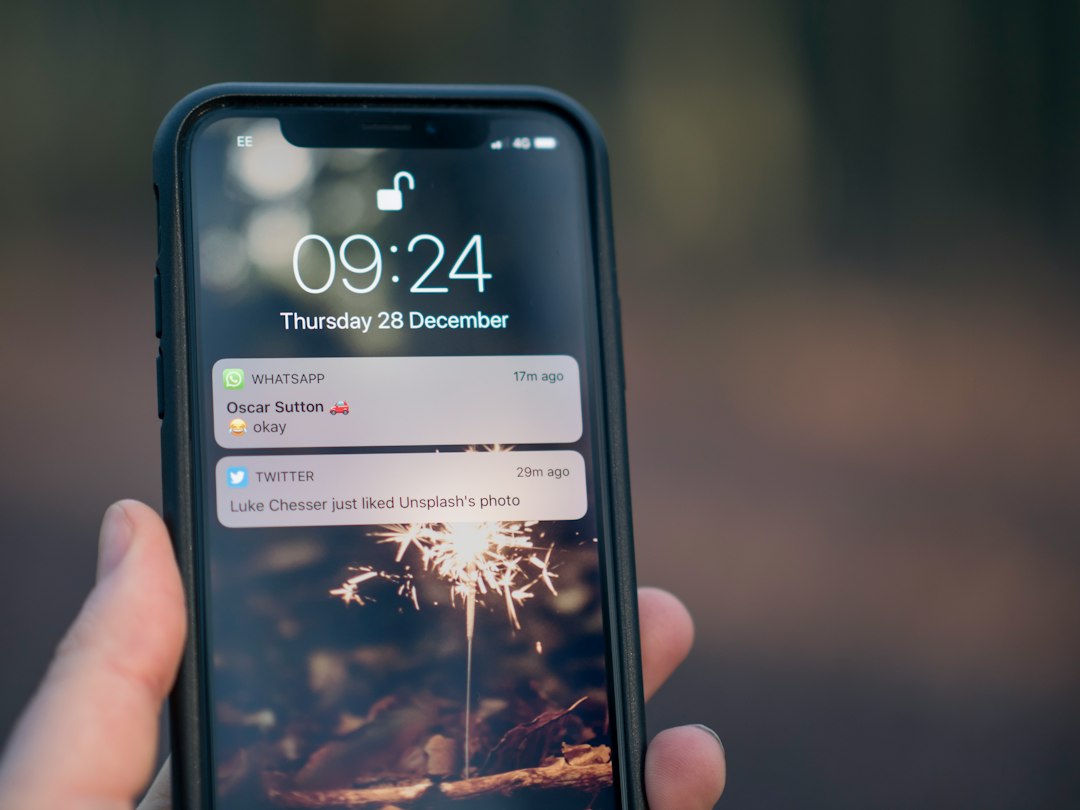
Modern phones can intentionally delay or group notifications. Focus modes, sleep schedules, driving modes and notification summaries may treat the doorbell app differently from calls or messages.
For security-related alerts you want immediately, configure the phone so the relevant doorbell notifications are allowed through the modes you actually use.
Compare Wi‑Fi and cellular behavior on the phone
If alerts are fast while the phone is on cellular data but slow on home Wi‑Fi, the issue may be the phone’s local network, DNS, VPN or filtering configuration. If alerts are slow everywhere, the doorbell network, service or phone settings are more likely.
Temporarily disable a VPN or filtering app as a test if the delay began after installing or changing one. Restore your normal settings afterward if it makes no difference.
Check whether only rich previews are delayed
Some apps send a basic notification first and load an image or animated preview afterward. A delayed thumbnail does not necessarily mean the basic doorbell press alert was delayed.
Pay attention to the first notification sound or banner, then separately judge how long the preview takes to load.
Cloud service outages can create temporary latency
If the doorbell and phone settings have not changed and many users suddenly report delays, check the manufacturer’s service-status page. A cloud problem can slow notifications even when local recording remains normal.
Avoid factory resetting devices during a confirmed service outage. The reset will not repair the vendor’s infrastructure and may create extra setup work later.
Update the doorbell app and firmware
Notification delivery depends on both the doorbell firmware and the mobile app. Install supported updates and restart the phone if the app has been running for a long time or notifications became unreliable after an operating-system update.
Do not interrupt firmware installation by repeatedly removing power from a wired doorbell or pulling the battery from a battery model.
Doorbell presses and motion alerts are different
A physical button press may trigger a different alert path from person or motion detection. Test both. If button alerts are immediate but motion alerts are late, focus on detection settings rather than phone delivery.
If the indoor chime does not sound when the button is pressed, that is a separate local-chime problem. See our Ring indoor chime troubleshooting guide for an example.
Bottom line
Delayed doorbell notifications are easiest to fix when you find the stage where time is being lost. Compare the recorded event with the phone alert, then test signal strength, detection zones, battery-saving behavior, app permissions and phone background restrictions in that order. Do not increase every sensitivity setting or reset the device until you know whether the delay starts at the camera or at the phone.
For the full cluster, return to the Video Doorbell Guide.