PoE Camera Keeps Disconnecting or Rebooting? Diagnose Nighttime and Intermittent Failures
.sl-poe table{border-collapse:collapse;width:100%;margin:22px 0}.sl-poe th,.sl-poe td{border:1px solid #bdcbd0;padding:12px;text-align:left;vertical-align:top}.sl-poe th{background:#edf4f2}.sl-poe .table-scroll{overflow-x:auto}.sl-poe figure{max-width:760px;margin:28px auto}.sl-poe img{max-width:100%;height:auto;display:block;margin:auto}.sl-poe figcaption{font-size:14px;line-height:1.6;color:#425c63;padding-top:9px}
The camera works all afternoon, then starts disappearing after sunset. A few minutes later it reconnects, the lights come back on and the cycle repeats. Buying a different camera may eventually help, but that pattern first deserves a controlled check of power, the installed cable and what changes when darkness arrives.
A PoE camera going offline is not automatically rebooting. Compare the device, local recording and remote viewing before deciding which component failed. This guide focuses on recurring interruptions and nighttime cycles; a camera that has never powered up belongs in the separate PoE startup troubleshooting guide.
Establish whether the camera actually restarts
Look for the documented startup sequence, device uptime resetting where available, or logs recording a restart. A PTZ returning through its startup movement can be a clue, while an app showing connection failed is much less specific. Note the evidence rather than treating every temporary blank picture as a power loss.
Reolink’s reboot guide describes repeated reconnects, recording gaps, startup movement and cycling illumination among the symptoms to investigate. It also distinguishes scheduled restarts from unintended ones. The relevant indicators depend on the model.
Check a saved local recording covering the same time. If the recording is continuous while a remote phone session fails, the camera may have kept operating. Investigate the viewing or internet path before replacing the camera’s power source.
Record the pattern before changing settings
Keep the approximate start and end time of each interruption, affected cameras, weather and any simultaneous household event. Include whether night illumination was active and whether other network devices also disappeared. A short log can reveal a repeatable pattern that an occasional app check misses.
| Pattern | Useful first investigation | Do not assume |
|---|---|---|
| Restart coincides with night illumination | Available power, cabling and device behavior under that load | The night-mode software is definitely defective |
| Several cameras drop at the same instant | Shared power, switch, recorder or network path | Every camera needs replacement |
| Same clock time each day | Maintenance schedules and configured power or reboot policies | A random hardware failure |
| Remote app fails but local video continues | Internet, account service and viewing connection | The camera has stopped recording |
| Fault follows rain or cable movement | Connections, strain and environmental protection | A reset will repair the physical cause |
| Picture freezes but device uptime continues | Stream, network and recording path | A complete power cycle |
The pattern narrows the next test; it does not establish a diagnosis by itself. Two faults can coexist, so keep the same baseline and check whether a change actually removes the relevant symptom.
Why nighttime can expose a marginal power arrangement
Illumination, heating or motor operation can change a camera’s requirements. A source and cable path that appear adequate during a low-load daytime preview may behave differently when those functions operate. Check the maximum specification and the source’s allocation method, not only an idle wattage display.
Axis distinguishes typical from maximum camera power consumption. Use the exact model’s requirements and supported source. Darkness-related failure is a reason to investigate the transition, not proof that every camera consumes the same additional power at night.
A controlled comparison with illumination disabled can sometimes help identify a correlation where the manufacturer permits it. Restore the intended monitoring configuration afterward. Leaving the camera unable to see its subject is not a completed repair merely because it stays online.
When several cameras activate their lights at similar times, a shared limitation deserves attention. The switch must support each port’s requirement and the combined allocation. An eight-port product does not necessarily provide eight times the maximum per-port power simultaneously.
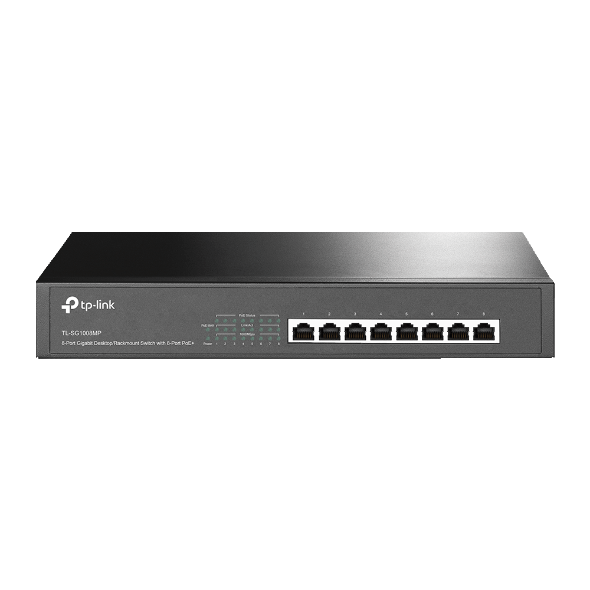
On supported equipment, inspect power-denied messages, priorities, configured limits and automatic recovery settings. Preserve the information before restarting the switch. An automatic port reset may restore a picture while hiding the condition that repeatedly caused the failure.
The switch-sizing guide provides worked examples. If capacity is insufficient, correct the arrangement rather than permanently disconnecting another important view to make the symptoms less visible.
Compare the installed run with a short known-good connection
Use the same camera and a confirmed compatible source with a short verified cable in a safe location. Keep relevant settings unchanged and observe the conditions associated with the fault. This is more informative than replacing cable, power source and software simultaneously.
If the problem disappears on the bench and returns on the installed route, investigate that route and its terminations. If it follows the camera across verified suitable connections, the camera or its configuration deserves more attention. Make sure comparison equipment supports the same required power level.
Do not move visibly wet or damaged connections onto another live system. Isolate and inspect through appropriate procedures. Safe access and preserving existing recordings take priority over reproducing the fault immediately.
A simple cable tester may miss the relevant problem
Continuity shows only part of a cable’s condition. A link can have connection or resistance problems that affect powered operation, especially under changing load. An inexpensive tester reporting all conductors connected is not a complete performance certificate.
Fluke Networks explains how inconsistent terminations and poor cable construction can affect PoE and data transmission. Have a competent installer choose appropriate tests rather than repeatedly reseating a plug until the connection happens to return.
Check conductor material, the complete route length and connector compatibility. Our Cat5e-versus-Cat6 guide explains why a category upgrade alone does not correct damaged seals or unsuitable plugs.
Look for scheduled actions before blaming intermittent hardware
Compare the interruption times with camera maintenance, recorder actions, switch PoE schedules and router restarts. A timer controlling an equipment socket can create the same daily pattern without any setting inside the camera.
Ask the responsible administrator why a schedule exists before changing it. A deliberately arranged maintenance event should be documented, not silently removed from a shared or business system. Make a narrow controlled adjustment when appropriate and verify the result.
Reolink’s official reboot troubleshooting includes camera, router and connected-system schedules. Use the corresponding documentation for other brands rather than searching for a menu label that may not exist on your model.
Check addresses, links and stream behavior separately
An address conflict or a network-path interruption can make a camera difficult to reach while its power remains stable. Review authorized router and switch logs and the camera’s uptime where available. Record the exact message rather than assuming every reconnect is an electrical event.
If a high-quality stream fails but a smaller preview remains available, examine link capacity, errors and the recording profile. A reduced bitrate can be a useful comparison, but it should not become a permanent workaround without checking whether the required evidence is still usable.
The recorder connection guide explains LAN and dedicated-camera paths. Do not flatten a managed network or disable its protections just because discovery behaves differently across segments.
Weather, temperature and installation conditions
Inspect whether the problem follows rain, heat, freezing conditions or a moving cable. Outdoor connections can be vulnerable even when the camera body has a suitable rating. A switch in an enclosed cupboard can face different conditions from the camera outside.
Follow operating limits for every component. Do not place an indoor injector in a sealed outdoor box and assume that excluding rain also solves temperature and condensation. Avoid adding unapproved fans, heaters or sealants as a first response.
The outdoor connection guide covers caps, glands and junction boxes. When water or electrical damage is visible, stop repeated power tests and arrange proper inspection.
Storage gaps need their own check
A playback gap can result from the camera restarting, but it can also come from schedules, event-only recording, storage faults or a recorder that lost the stream. Check the live-device and storage evidence together before drawing a conclusion.
A camera card and an NVR may hold different histories. Compare both when the system supports them, noting which source supplied the clip. A continuous card recording during a missing NVR interval points toward a different path from both destinations losing the same period.
Use the recording guide and recorder-storage guide when the evidence points there. Do not format a drive to investigate an unexplained gap before preserving needed footage.
Firmware changes should be controlled
Check official support for the exact model and hardware revision. Record the installed version and any relevant changes around the time the fault began. A recent update is useful context but not proof that software caused a coincidental cable failure.
Use the supported update procedure, preserve settings where appropriate and avoid interrupting power. Do not install an unofficial image or a file for a similar-looking model. For an operational system, choose a maintenance period and understand the recovery route.
A factory reset is more disruptive than a normal restart. It can erase network, account and recording configuration without fixing inadequate power. Use it when official diagnosis justifies it, not as the default first test.
Three examples of useful diagnosis
One camera fails when its spotlight activates. Compare it on a short verified lead with a suitable source and check the original port’s allocation. A stable result there gives you a reason to assess the installed route; it does not prove which termination is faulty.
All cameras disappear at precisely 03:00. Compare switch power, router maintenance and recorder logs. A shared scheduled event is a more focused first investigation than replacing several independent cameras.
The phone loses video while local playback remains complete. Preserve the functioning recording path and investigate remote viewing, account service and internet access. Rewiring the camera may have no effect on that symptom.
These are hypothetical examples showing how observations change the next step. They are not diagnoses of your equipment or claims that SecurityLatest has tested a particular faulty product.
Give support a record they can use
Provide the camera and source models, software versions, approximate cable length, topology and exact failure times. Include whether uptime resets, other cameras fail and the issue follows the device through controlled comparisons.
Share sensitive identifiers and logs through official private support channels, not public posts containing your address and credentials. Export important incident footage separately before making configuration changes that may affect retrieval.
Ask what observation will confirm the proposed repair. Replacing a camera or switch should address the documented fault rather than simply restart the system long enough for a technician to leave.
Verify across the period that used to fail
Test through normal day-to-night transitions and any relevant scheduled period. Check the original recording timeline, device status and useful image detail. A successful five-minute daytime preview does not establish that a nightly problem has been resolved.
Keep a brief note of the actual correction and any remaining limitation. That record helps distinguish a recurrence from a different future issue and gives the next installer a useful starting point.
Frequently asked questions
Does a nighttime disconnect always mean too little PoE power?
No. It is a reason to check power and cabling alongside schedules, environment and network evidence. Establish whether the camera actually restarts.
Should I leave infrared turned off to stop the reboot?
A permitted temporary comparison can help diagnosis, but removing the illumination needed for useful footage is not a complete repair. Restore the intended function after correcting the cause.
Why does the app say offline while recordings continue?
The viewing path and recording path can have different dependencies. Investigate the failed connection rather than assuming the whole camera stopped.
What proves the fix worked?
Stable operation and retrievable useful recordings through the conditions that previously triggered the failure. Documented repeatable results are more meaningful than silence after a reset.
For the rest of the installation, the PoE setup guide connects power, cable, recording and handover checks. Treat the problem as a system diagnosis rather than a reason to replace every component at once.